Nimble Commander and build times

This year I took a pause from developing Nimble Commander; during that time, I had some fun with software rendering – it’s actually quite enjoyable when you get fast feedback from your code on the screen and you’re not burdened by a sizeable codebase.

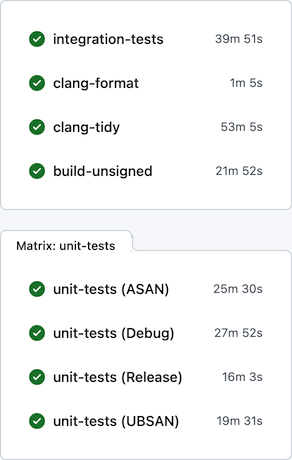
Upon getting back to NC, one thing I realized was that I can’t tolerate the very slow development feedback cycle anymore. On a local machine, build times were tolerable – e.g., on the base M1 CPU the project could be built from scratch in ~5 minutes. On GitHub Actions, however, the situation was rather miserable: the feedback time was somewhere between 30 and 60 minutes, depending on luck:

Generally, I find macOS to be a rather hostile platform for developers (but amazing for users), where just keeping up to date with the constant streak of changes requires a lot of effort. Multiplied by other oddities of the ecosystem, maintenance becomes rather tedious. For example, the “clang-tidy” CI job has to first build all targets via xcodebuild, eavesdropping on the compiler invocations, manually clean the Xcode-specific arguments, and only after all that acrobatics actually execute clang-tidy. Another example of the oddities that make the CI so slow: the “integration-tests” job has to run its Docker containers backed by full QEMU emulation (sloooow), since Apple Silicon didn’t allow nested virtualization up until M3 which is still unavailable on GitHub’s runners.

Previously I tried using a combination of xcodebuild + ccache + GitHub Actions / Jenkins to improve the CI turnaround time, with limited success, and ended up dropping this caching altogether. Microsoft is very generous in giving unlimited free machine time on three platforms to Open-Source projects, which I guess somewhat disincentives optimizing resource usage. Seriously though, thank you, Microsoft! Being able to build/package/test/lint/analyze per each commit on real Mac hardware is absolutely amazing. It’s hilarious that in developing Nimble Commander – an application that targets solely macOS – I’m getting support from Microsoft instead of Apple, but I digress…

This time I focused on two other areas in an attempt to improve the CI turnaround time: minimizing xcodebuild invocations and using unity builds.

Less xcodebuild invocations

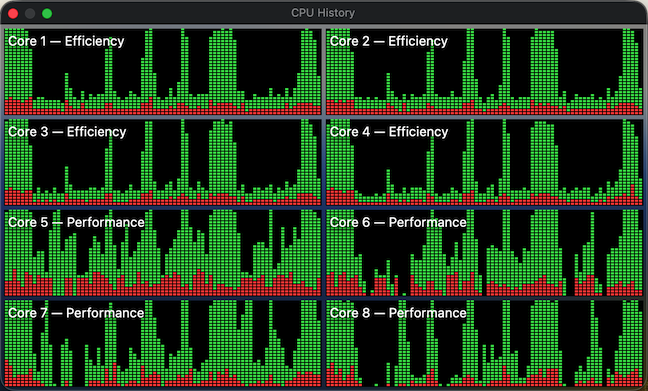
Previously, the scripts that run tests (e.g. “run_all_unit_tests.sh”) tried to do the “right thing”. Targets of the test suites can be identified by their name suffixes (e.g. “UT” for unit tests and “IT” for integration tests), so the scripts asked the build system to provide a list of targets, filtered the list to what they needed, then built those targets one by one and finally ran them. This approach isn’t the most efficient, as it sometimes leaves the build system without enough work to do in parallel. To visualize, here’s how the CPU load previously looked sometimes:

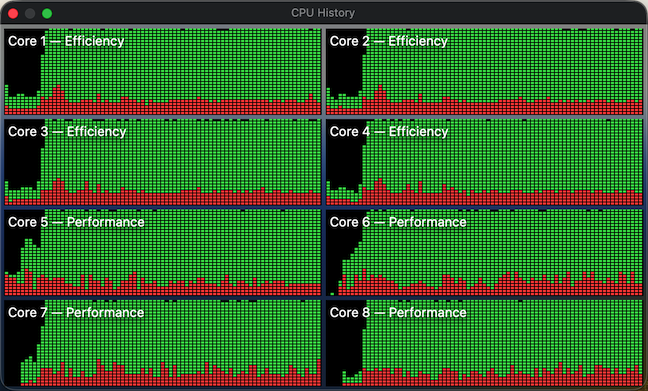
The periods of low CPU usage represent the time when either the build system isn’t running yet or already has fewer targets than available CPU cores to work on in parallel. To improve system utilization, I dropped this “smart” approach and instead manually created explicit “umbrella” schemes that pull in a set of targets, e.g. “All”, “UnitTests” and “IntegrationTests”. Now the CI scripts effectively perform only two invocations of the build system – one to gather the build paths and another to fire up the actual build. In this setup, xcodebuild is able to construct a full build graph that includes every target and load up all CPU cores very efficiently (make sure to pass “-parallelizeTargets”):

Moral of the story? Whenever you try to do the “right” / ”smart” thing, at least verify with perf tools that this smartness doesn’t backfire.

Unity builds

Unity builds are a nice tool that shouldn’t have existed in the first place. Traditionally, they served two purposes: allowing the compiler to optimize better by accessing more context, and speeding up compilation by doing fewer redundant passes. The prior is largely irrelevant today, as we have LTO/WPO working well across all major compilers. For example, Nimble Commander is built as a large monolithic blob where both 1st- and 3rd- party source is statically linked together with link-time optimization. Unity builds, though, are still applicable. Not only are C++20 modules nowhere near production readiness, I doubt they will ever be applicable to NC, given the ample usage of Objective-C++ and occasional Swift interop. On top of that, compilation of C++ code gets slower and slower with each new Standard, simply due to the sheer size of the ever-expanding standard library code that the compiler has to go through over and over again.

Nimble Commander’s codebase consists of several libraries with well-defined boundaries and the main application, which is currently a rather intertwined monolith. I decided to take a pragmatic approach and move only the internal libraries to unity builds for now (that’s about 70% of the implementation files). Below are a few notes specific to applying unity builds in Nimble Commander and the most important – build times before and after.

Sources files were manually pulled into unity builds one by one. As there are two closely related but different languages in the codebase: C++ and Objective-C++, some of the libraries required two unity files: one “.cpp” and another “.mm”. On top of having two language flavors, the sources have to be built twice for two different architectures (x86_64 and arm64) when producing universal binaries. The final distribution of the sources over the unity build files looked like this:

Unity file Number of included files
_Base.cpp 26
_Base.mm 2
_BaseUT.cpp 13
_Utility.cpp 25
_Utility.mm 34
_UtilityUT.cpp 11
_UtilityUT.mm 12
_Config.cpp 8
_Term.cpp 16
_Term.mm 7
_TermUT.cpp 7
_VFS.cpp 48
_VFS.mm 7
_VFSUT.cpp 9
_VFSIcon.cpp 3
_VFSIcon.mm 15
_Viewer.cpp 18
_Viewer.mm 12
_Highlighter.cpp 5
_ViewerUT.cpp 12
_Panel.cpp 8
_Panel.mm 15
_PanelUT.mm 8
_Operations.cpp 17
_Operations.mm 33
_OperationsUT.cpp 2
_OperationsUT.mm 3
_OperationsIT.cpp 7

Quite a lot of files required some touches:

  • In Objective-C++ files, localization based on NSLocalizedString() doesn’t work well with unity builds. Xcode’s automatic strings extraction tool stops processing these calls, seemingly only looking into source files directly compiled by the build system. The solution was to move any calls to this magic function into a single file that’s not included in the unity build. It’s ugly but works.
  • Any static functions had to be either converted into static member functions or prefixed with a clarifying name. The same applies to static constants, type definitions, and type aliases.
  • Usages of “using namespace XYZ” had to be removed. That’s fine for “normal” C++, but for Objective-C++ it’s rough – Objective-C classes can’t be placed in C++ namespaces, so any references to types inside the same libraries have to be explicit. Inside methods, however, “using namespace XYZ” can still be used.
  • Any #defines or #pragmas have to scoped and reverted back.
  • In test suites, it was possible to cheat a bit and wrap the entire set of test cases in a unique namespace per file – it’s easier and less disruptive.

With these details out of the way, here’s a comparison of different build times, before and after switching to unity builds, measured on a base M1 CPU:

  Before After
Build the application itself,
x86_64+arm64, Debug
320s 200s
Build the application itself,
x86_64+arm64, Release
298s 229s
Build all targets,
arm64, Debug
212s 143s
Build individual static libraries,
x86_64+arm64, Debug
   
    Base 3.3s 1.6s
    Utility 10.9s 4.1s
    Config 1.8s 1.5s
    Term 4.5s 3.2s
    VFS 26.7s 6.8s
    Panel 6.1s 3.2s

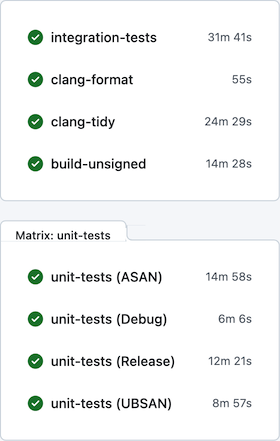
After all these changes, per-commit CI on GitHub Actions looks much better:

Action Shortcuts in Nimble Commander

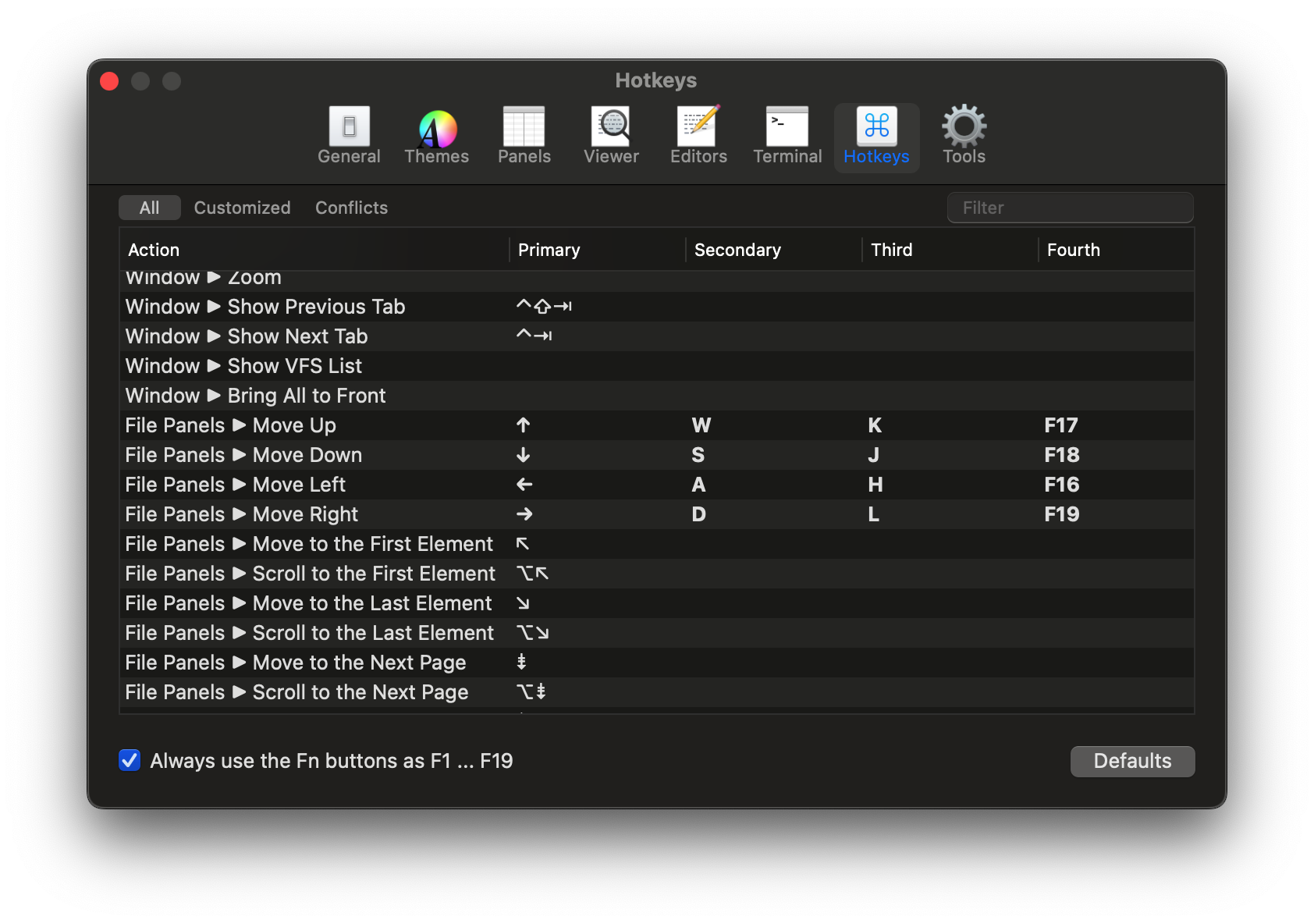
Over the New Year 2025 holiday period, I spent quite a few days implementing a feature in Nimble Commander that has been occasionally requested for many years. Customization of action shortcuts has been supported in the app since its early days, but this only allowed for a one-to-one relationship: an action could have a single shortcut.
What some users wanted was twofold:
  • The ability to set more than one shortcut per action.
  • The option to choose shortcuts that are normally not supported by macOS UX.
Adding this feature involved an interesting refactoring and touched many nitty-gritty details, so I thought it would be worth writing a brief reflection.
 
To start, let’s lay out the basics of how Nimble Commander handled shortcuts before.
Shortcuts can be assigned to three distinct types of actions, even though on the surface they appear similar:
  • Actions available through the standard fixed set of menu items.
    Processing the keyboard events for these shortcuts is done by macOS frameworks. This approach is standard and expected by users, plus it’s somewhat self-documenting — the menu items display their key equivalents next to the labels. The downside, often surprising to users, is that the menu system enforces strict limitations on which keys or key combinations can work as shortcuts. For instance, assigning a single letter without modifiers as a shortcut isn’t possible.
  • Context-based custom actions.
    An example of these might be actions in the file panels. For instance, when the Down key is pressed, a particular view in the responder chain recognizes the keypress as corresponding to the panel.move_down action and triggers the appropriate event. This logic is custom and implemented in methods like performKeyEquivalent: or keyDown:. Nimble Commander has full control over these events, with no restrictions on key assignments.
  • External tools.
    Shortcuts can also be set for external tools. In this case, the macOS menu system handles the heavy lifting — the corresponding dynamic menu item is assigned the shortcut selected for the external tool. The difference from standard application menu actions is that the list of external tools can be modified while the application is running. However, the same restrictions as menu-based actions apply here.
There are two main components in Nimble Commander that provide the machinery for shortcut customization:
  • ActionShortcut.
    This class describes a single keystroke. In practical terms, it encapsulates a combination of a character from the BMP (2 bytes) and a bitmask of key modifiers (1 byte). The class is very compact, occupying just 4 bytes (2 bytes for the character, 1 byte for the modifier bitmask, and 1 byte for padding).
  • ActionsShortcutsManager.
    This class is responsible for tracking which actions are associated with which shortcuts, including both default settings and custom overrides. It also provides a mechanism to automatically update external instances of ActionShortcut whenever the shortcut assigned to a corresponding action changes.
At first glance, the feature seems to simply involve allowing multiple shortcuts per action instead of just one. However, a naive implementation would be too inefficient. The issue lies with how context-based shortcut processing is implemented.
Previously, the processing worked as follows: each view in the hierarchy (e.g., file panel views, split views, tabbed holders, main window states, etc.) maintained a set of ActionShortcuts corresponding to the actions it handled. Whenever a keyDown: event occurred, the view hierarchy was traversed, with each view being asked, “Are you interested in this keystroke?” until one of the views responded affirmatively. Views supporting customizable shortcuts would then iterate through their set of shortcuts, asking each one, “Are you this keypress?“.
The runtime cost of this implementation scaled linearly with the number of customizable shortcuts. This was already somewhat inefficient, and converting each of these shortcuts into a dynamic container would have been completely impractical.
 
After staring at the code for a while, I realized the entire problem could be re-framed.
Instead of asking each shortcut, “Are you this keystroke?”, a new shortcut could be created directly from the keystroke itself. Once an incoming keystroke is expressed as a shortcut, it becomes possible to compare it directly with other shortcuts (a comparison of exactly 3 raw bytes).
Moreover, since shortcuts are just three bytes, they are trivially hashable, allowing all used shortcuts to be stored in a flat hash map. With such a map in place, it’s possible to perform an O(1) lookup for the incoming keystroke and answer the reverse question: “Which actions are triggered by this keystroke?”
This approach eliminates the need to maintain up-to-date, context-based shortcuts scattered throughout the UI code. Instead, the UI code can query the ActionsShortcutsManager to determine if the incoming keystroke corresponds to any specific action.
 
In practical terms, this functionality expansion involved:
Once this infrastructure was in place, adding support for multiple shortcuts for menu items was relatively straightforward:
  • Override the NSWindows’s performKeyEquivalent: method.
  • Find the first action that uses the incoming keypress as its shortcut, if it exists.
  • Check the index of the shortcut among the action’s shortcuts. If it’s the first one, ignore it and let NSMenu process the event.
  • Locate the menu item with the corresponding action tag and find its responder.
  • Validate the menu item if the responder provides the validation interface. Beep and return if validation fails.
  • Finally, ask the parent menu to perform the menu item’s action, including the visual blink that’s normally expected.
External tools still support only a single shortcut for now, though. Perhaps this is something to improve in future releases.

Enabling Swift in Nimble Commander

I’m quite interested in introducing Swift in Nimble Commander’s codebase and gradually replacing its UI components with code written in this language. Integrating Swift into this codebase is not straightforward, as there is almost no pure Objective-C code. Instead, all UI-level code is compiled as Objective-C++, which gives transparent access to components written in C++ and its standard library. Frankly, this is often much more efficient and pleasant to use than [Core]Foundation. The challenge before was that interoperability between C++ and Swift was essentially non-existent, and the only solution was to manually write bridges in plain C, which was a showstopper for me. Last year, with Xcode 15, some reasonable C++ <-> Swift interoperability finally became available, but it was missing crucial parts to be meaningfully used in an established codebase. However, with Xcode 16, it seems that the interop is now mature enough to be taken seriously. This week, I converted a small Objective-C component to Swift and submitted the change to Nimble Commander’s repository. It was a rather bumpy ride and took quite a few hours to iron out the problems, so I decided to write down my notes to help someone else spare a few brain cells while going through a similar journey.

The start was promising: enable ObjC++ interop (SWIFT_OBJC_INTEROP_MODE=objcxx), add a Swift file, and Xcode automatically enables Clang modules and creates a dummy bridging header. I had to tweak some C++ code with SWIFT_UNSAFE_REFERENCE to allow the Swift compiler to import the required type, but after that, the setup worked like a charm – the Objective-C++ side created a view now implemented in Swift, and the Swift side seamlessly accessed the component written in [Objective]C++. All of this was fully supported by Xcode: navigation, auto-completion—it all worked! Well, until it didn’t. Trivial functions, like printing “Hello, World!” worked fine, but the actual UI component re-written in Swift greeted me with a crash:

Nimble Commander`@objc PanelListViewTableHeaderCell.init(textCell:):
    0x10128ed74 <+0>:   sub    sp, sp, #0x50
    0x10128ed78 <+4>:   stp    x20, x19, [sp, #0x30]
    0x10128ed7c <+8>:   stp    x29, x30, [sp, #0x40]
    0x10128ed80 <+12>:  add    x29, sp, #0x40
    0x10128ed84 <+16>:  str    x0, [sp, #0x10]
    0x10128ed88 <+20>:  str    x2, [sp, #0x18]
    0x10128ed8c <+24>:  mov    x0, #0x0                  ; =0
    0x10128ed90 <+28>:  bl     0x10149cf84               ; symbol stub for: type metadata accessor for Swift.MainActor
->  0x10128ed94 <+32>:  mov    x20, x0
    0x10128ed98 <+36>:  str    x20, [sp, #0x8]
  ...

This left me quite puzzled—the Swift runtime was clearly loaded, as I could write a function using its standard library, and it was executed correctly when called from the C++ side. Yet the UI code simply refused to work, with parts of it clearly not being loaded—the pointers to the functions were NULL. Normally, I’d expect a runtime to either work correctly or fail entirely with a load-time error, but this was something new. As I don’t have much (or frankly, any) reasonable understanding of Swift’s runtime machinery under the hood, I tried searching online for any answers related to these symptoms and found essentially none. It’s not the kind of experience one would expect from a user-friendly language.

While searching for what other projects do, I stumbled upon a suspicious libswift_Concurrency.dylib located in the Frameworks directory, which gave me a hint—the actors model is related to concurrency, and the presence of this specific library couldn’t be a coincidence. So, out of desperation and curiosity, I blindly copied this library into Nimble Commander’s own Frameworks directory, and lo and behold—it finally worked! There is an option to make Xcode copy this library automatically: ALWAYS_EMBED_SWIFT_STANDARD_LIBRARIES. Another piece of the puzzle was that my @rpath only contained @executable_path/../Frameworks when it should have also included /usr/lib/swift. With these changes, Nimble Commander can now run correctly on macOS 10.15 through macOS 15.

With that done and the actual application built, it was time to tackle the tooling around the project. While Xcode’s toolchain is used to compile Nimble Commander, a separate LLVM installation from Homebrew is used for linting. That’s because Xcode doesn’t include eitherclang-format or clang-tidy (seriously, weird!). Since Apple ships a modified toolchain, consuming the same source code with an external toolchain can be rather problematic. I had to make the following changes to get clang-tidy to pass again after integrating the Swift source:

  • Disable the explicit-specialization-storage-class diagnostic, as the automatically generated bridging code from the Swift compiler seems to contain incorrect declarations.
  • Disable Clang modules by manually removing the -fmodules and -fmodules-cache-path= flags from the response files.
  • Remove framework imports (e.g., @import AppKit;) from the automatically generated bridging headers.
  • Add the paths to the Swift toolchain to the project’s search paths, i.e., $(TOOLCHAIN_DIR)/usr/lib/swift and $(TOOLCHAIN_DIR)/usr/include.
  • Explicitly include the Swift interop machinery before including the bridging header, i.e., #include <swiftToCxx/_SwiftCxxInteroperability.h>.

Such a number of hacks is unfortunate, and I hope to gradually make it easier to maintain.

This concludes the bumpy road to making Swift usable in Nimble Commander, though I’m sure more active use of the language will reveal other rough edges—no interop is seamless.